How to Reset a Lost or Stolen Password
If you forget your password or need to change it, complete the following:
- In your web browser, enter your organization's URL for ParishSOFT Family Suite.
- On the Welcome page, select the Lost password? link.
The Reset Password form (shown below) is displayed.
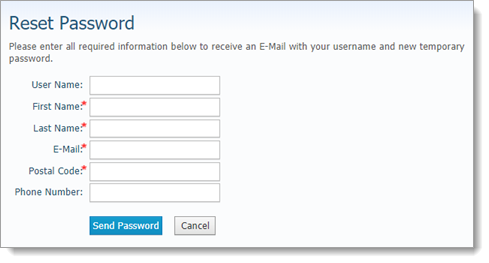
- Complete the fields in the form. Required fields are marked with a red asterisk .
- Click
 .
.
After the system validates your request for a new password, you receive an email containing your username and a temporary password. The email is sent to the email address in your family record.
- Log in with your temporary password.
The system prompts you to change the temporary password.